Ask Your Data — Building an AI-Powered Analytics App with Python, DuckDB & OpenAI
Turn plain-English questions into instant SQL queries and visualizations — no dashboard expertise required.
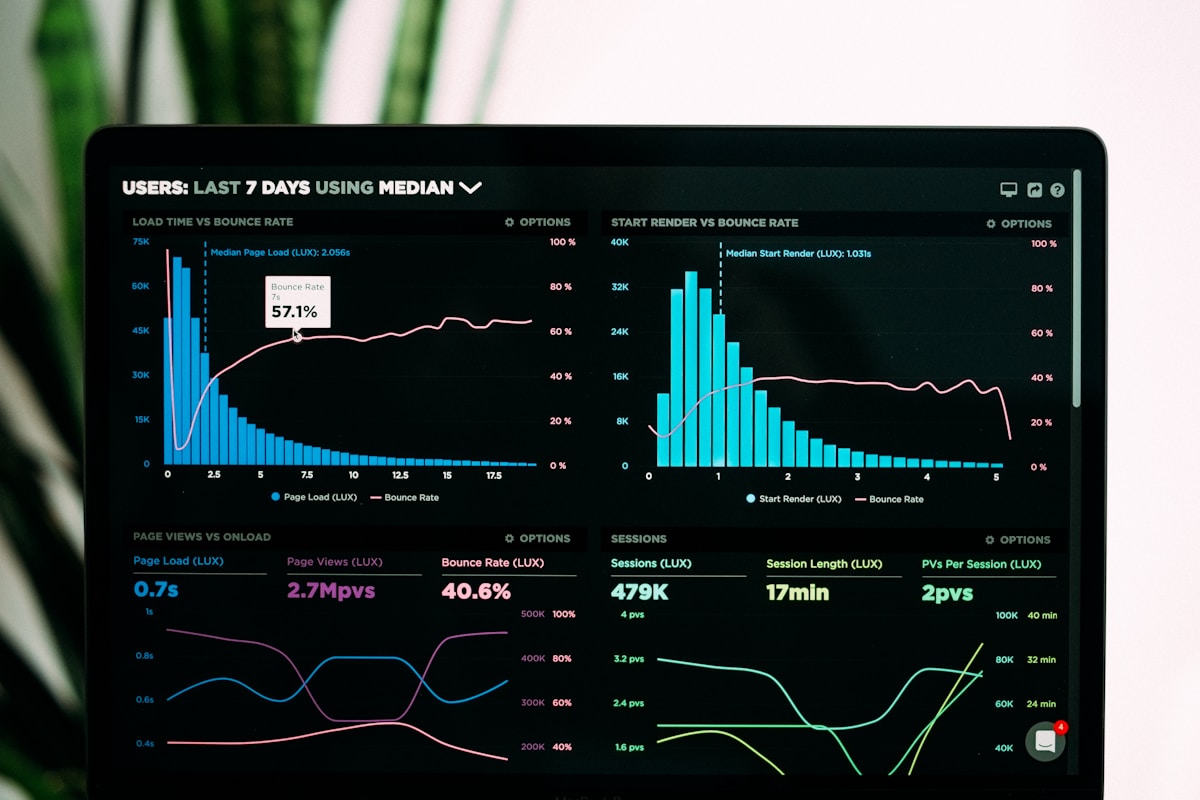
Most data analysts spend 80% of their time writing SQL for questions that could be asked in one sentence. What if you didn’t have to?
This post walks through building Ask Your Data — a lightweight AI analytics dashboard that takes a natural-language question, converts it to SQL, runs it against your dataset, auto-generates a chart, and returns key insights. All in a single Python notebook.
🧱 The Stack — What We’re Working With
| Tool | Role |
|---|---|
OpenAI gpt-4.1-mini | NL → SQL generation + insight summarisation |
| DuckDB | In-memory SQL engine (blazing fast on DataFrames) |
| Pandas | Data loading and manipulation |
| Plotly | Auto-generated interactive charts |
| Gradio | Web UI — zero frontend code required |
Why DuckDB? Unlike traditional databases, DuckDB runs entirely in-process. You register a Pandas DataFrame as a SQL table and query it with full SQL — no server, no setup, no latency.
🔄 The Full Pipeline
flowchart LR
    A([User Question]) --> B[Schema Extraction]
    B --> C[OpenAI: NL → SQL]
    C --> D[DuckDB Execution]
    D --> E[Results DataFrame]
    E --> F[Plotly Chart]
    E --> G[OpenAI: Insight Summary]
    F --> H([Gradio UI])
    G --> H

    style A fill:#4A90D9,color:#fff
    style C fill:#9B6EBD,color:#fff
    style D fill:#E8A838,color:#000
    style F fill:#5BA85A,color:#fff
    style G fill:#9B6EBD,color:#fff
    style H fill:#D9534F,color:#fff
🗄️ Step 1 — Load Data & Register with DuckDB
The dataset (Superstore CSV) is loaded with Pandas, date columns are parsed, and then registered as a DuckDB SQL table named sales.
1
2
3
4
5
6
7
import duckdb, pandas as pd

df = pd.read_csv(file_path)
df["Order Date"] = pd.to_datetime(df["Order Date"])

con = duckdb.connect(database=":memory:")
con.register("sales", df)
No copying, no serialisation overhead — DuckDB reads directly from the DataFrame in memory.
📋 Step 2 — Extract Schema for the AI
Before we can ask the model to write SQL, it needs to know what columns and data types exist. A helper function generates a human-readable schema description, including a Markdown preview of the first few rows.
1
2
3
4
5
6
def get_schema_description(df, table_name="sales", n_rows=5):
    lines = [f"Table {table_name} has the following columns:"]
    for col, dtype in df.dtypes.items():
        lines.append(f"- {col} ({dtype})")
    lines.append(df.head(n_rows).to_markdown(index=False))
    return "\n".join(lines)
This schema text gets injected directly into the model’s prompt — so the AI knows exactly what it’s working with before generating any SQL.
🤖 Step 3 — Natural Language → SQL
The core magic. A strict system prompt constrains the model to return only a raw SELECT statement — no markdown, no explanations, no destructive commands.
1
2
3
4
5
6
7
8
9
SYSTEM_PROMPT = """
You are an expert data analyst who writes SQL queries for DuckDB.
Given a user question and a table schema, you must write a single SELECT statement.

Rules:
- Use only the columns and table names mentioned in the schema.
- Only return a SELECT query. No INSERT, UPDATE, DELETE, DROP, or other statements.
- Do not include backticks or markdown. Return only raw SQL.
"""
The function sends schema + question to gpt-4.1-mini with temperature=0.0 for deterministic output.
1
2
3
4
5
6
7
8
9
10
def generate_sql_from_question(question, schema_text):
    response = client.chat.completions.create(
        model="gpt-4.1-mini",
        messages=[
            {"role": "system", "content": SYSTEM_PROMPT},
            {"role": "user", "content": f"Schema:\n{schema_text}\n\nQuestion:\n{question}"}
        ],
        temperature=0.0,
    )
    return response.choices[0].message.content.strip()
Why
temperature=0.0? SQL generation is a deterministic task. Lower temperature = less “creativity” = fewer hallucinated column names.
🛡️ Step 4 — Safe SQL Execution
AI-generated SQL shouldn’t be blindly trusted. Before running anything, we validate the query starts with SELECT.
1
2
3
4
5
6
7
8
def run_sql_query(sql, con):
    if not sql.lower().lstrip().startswith("select"):
        raise ValueError("Only SELECT queries are allowed.")
    try:
        return con.execute(sql).df()
    except Exception as e:
        print(f"SQL error: {e}")
        return pd.DataFrame()
Never execute AI-generated SQL without a SELECT-only guard. Even well-prompted models can occasionally produce unexpected output.
📊 Step 5 — Auto-Visualisation with Plotly
The build_plot function inspects the result DataFrame and auto-selects the right chart type — no manual configuration needed.
| Result shape | Chart type |
|---|---|
| 2 columns, first is datetime | Line chart (trend over time) |
| 2 columns, second is numeric | Bar chart (comparison) |
| Anything else | None (show table only) |
1
2
3
4
5
6
7
8
9
10
11
def build_plot(result_df):
    if result_df.empty:
        return None
    cols = result_df.columns.tolist()
    if len(cols) == 2:
        x, y = cols
        if pd.api.types.is_datetime64_any_dtype(result_df[x]):
            return px.line(result_df, x=x, y=y, title=f"{y} over {x}")
        if pd.api.types.is_numeric_dtype(result_df[y]):
            return px.bar(result_df, x=x, y=y, title=f"{y} by {x}")
    return None
💡 Step 6 — AI-Generated Insights
After the query runs, a second LLM call summarises the results into 3–5 actionable sentences. This is the layer that turns raw numbers into understanding.
1
2
3
4
5
6
INSIGHTS_SYSTEM_PROMPT = """
You are an expert data analyst. Summarize the key findings from the data.
- Highlight trends, anomalies, and important observations.
- Do not just describe the data — provide actual insights.
- Limit to 3–5 sentences.
"""
Using
temperature=0.2here (vs0.0for SQL) allows slightly more natural language in the insights, while keeping it grounded and factual.
🖥️ Step 7 — Gradio UI
Everything gets wired together in a Gradio Blocks layout:
- Left column: Question input + preset buttons
- Right column: Generated SQL → Results table → Plotly chart → Insights
1
2
3
4
5
6
7
8
9
10
11
12
13
14
15
16
with gr.Blocks() as demo:
    gr.Markdown("# Ask Your Data")
    with gr.Row():
        with gr.Column(scale=1):
            question_input = gr.Textbox(label="Question")
            run_btn = gr.Button("Run analysis", variant="primary")
        with gr.Column(scale=2):
            sql_output = gr.Code(label="Generated SQL", language="sql")
            table_output = gr.HTML(label="Result preview")
            plot_output = gr.Plot(label="Chart")
            insights_output = gr.Markdown(label="Insights")

    run_btn.click(fn=ask_your_data_core, inputs=question_input,
                  outputs=[sql_output, table_output, plot_output, insights_output])

demo.launch(share=True)
share=Truegenerates a public Gradio URL — useful for demos and sharing with non-technical stakeholders instantly.
🎯 One-Sentence Intuition
Ask Your Data is a proof that the hardest part of data analysis isn’t the SQL — it’s knowing what question to ask; once you do, AI can handle the rest.
🧩 What Makes This Pattern Powerful
The NL → SQL → Visualisation → Insight loop isn’t just a cool demo — it’s a pattern that generalises:
- Swap the dataset: point it at any CSV, Parquet, or database
- Swap the model: use a local LLM (e.g., Ollama) for private data
- Swap the frontend: replace Gradio with Streamlit or a REST API
- Extend the safety layer: add column allow-lists or row-level filters
Always enforce SELECT-only queries and validate column names before running AI-generated SQL in production. Schema injection attacks are real.
Personal learning log. Next up: extending this pattern with streaming responses and multi-table joins.