Git and GitHub Explained: A Visual Guide for Beginners
A clear breakdown of Git and GitHub — core commands, .gitignore, undoing mistakes, branching, and stashing — everything you actually need.
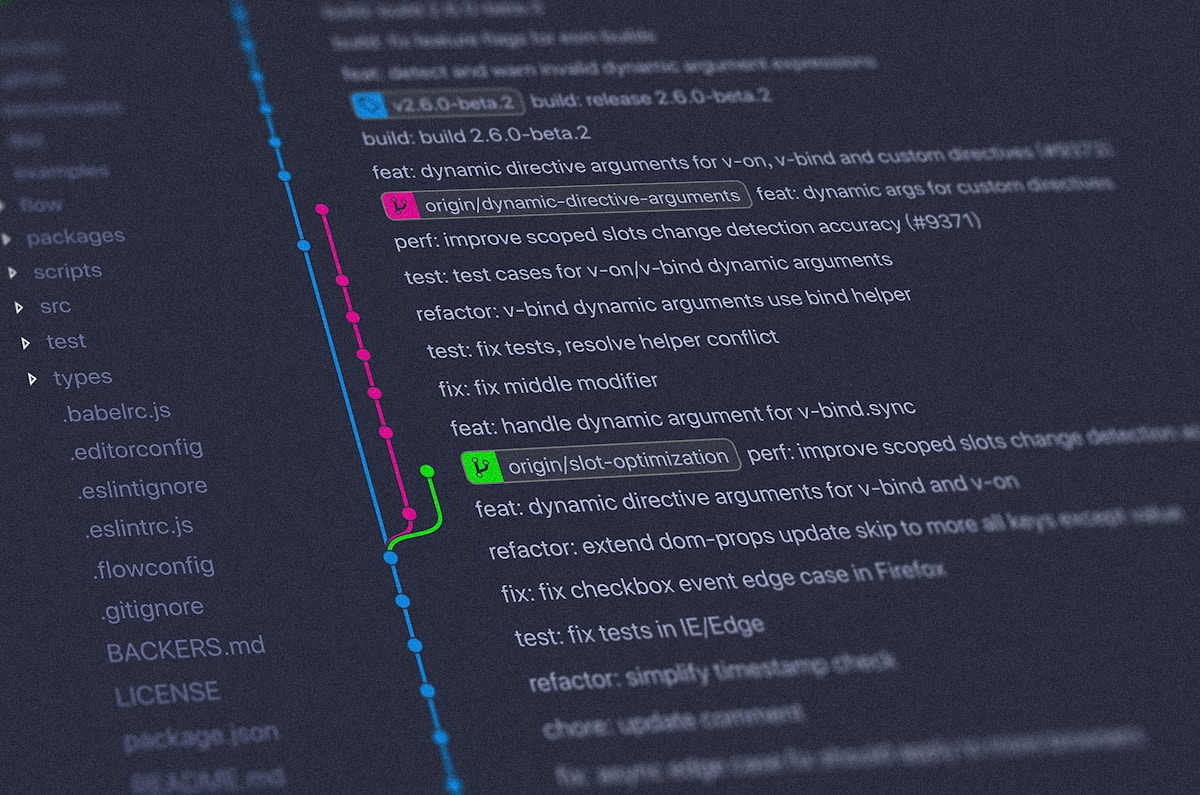
😱 The Problem Git Solves
Picture this: it’s 2:00 a.m. on a Sunday. You’ve spent the entire weekend polishing a login page — clean layout, smooth design, everything looking sharp. Then you decide to nudge a button a few pixels to the right. You save. Refresh. Everything breaks.
Input fields misaligned. Icons gone rogue. Ctrl+Z isn’t helping. And the last version you sent your teammate was on Friday.
This is exactly the problem Git was built to solve.
🆚 Git vs GitHub — What’s the Difference?
These two are often confused, but they serve different roles:
| Git | GitHub | |
|---|---|---|
| What it is | A local tool that runs on your computer | A website for storing and sharing code |
| Purpose | Track every change you make to your project | Collaborate with others, host your repo online |
| Works offline? | ✅ Yes | ❌ Needs internet |
Think of Git as your personal checkpoint system, and GitHub as the cloud where you back up and share those checkpoints.
⌨️ Core Git Commands (The 90% Workflow)
You don’t need to memorise everything Git can do. These are the commands that cover the vast majority of real-world usage:
flowchart LR
    A["📁 Working\nDirectory"]:::stage --> |"git add"| B["📋 Staging\nArea"]:::stage
    B --> |"git commit"| C["🏠 Local\nRepository"]:::stage
    C --> |"git push"| D["☁️ Remote\n(GitHub)"]:::stage
    D --> |"git pull"| A

    classDef stage fill:#4A90D9,stroke:#2c5f8a,color:#fff
1. git init — Start Tracking Your Project
1
git init
Initialises a Git repository in your project folder. From this point, Git watches every change you make.
2. git status — See What’s Changed
1
git status
Shows which files have been modified, added, or deleted since your last checkpoint. Want more detail?
1
2
git diff --cached --name-only   # only staged files
git ls-files                    # all tracked files
3. git add — Stage Your Changes
1
2
git add login.html    # stage a specific file
git add .             # stage everything
Think of staging as putting items into a shopping cart before checkout. You’re deciding what goes into your next snapshot.
4. git commit — Save a Checkpoint
1
git commit -m "adding apple login option"
This creates a permanent snapshot of your staged changes. Every commit is a version you can return to at any time.
Write commit messages as if completing the sentence: “This commit will…” — e.g., “add Apple login option” not “stuff” or “fix”.
5. git branch + git checkout -b — Parallel Universes
1
git checkout -b redesign-textbox
Branches are like parallel universes for your project. Experiment freely without touching the main version. If the experiment works, merge it. If not, delete the branch and move on.
6. git merge — Combine Branches
1
git merge redesign-textbox
Merges your experiment branch into the main branch. Git compares the two and integrates the new changes.
Be careful with
git merge— you’re modifying the main branch. If you’re unsure, create a pull request on GitHub instead and review the diff first.
🙈 .gitignore — What to Ignore
Not everything belongs on GitHub. Large datasets, model weights, log files, and secrets should stay local. That’s what .gitignore is for.
Create it in the root of your project:
1
touch .gitignore
Then add patterns — one per line:
1
2
3
4
5
6
7
8
9
10
11
12
13
14
15
16
17
18
# Python
__pycache__/
*.pyc
.env

# Data / ML (large files — don't push these)
data/
output/
logs/
*.pth
*.h5
*.npy

# Jupyter
.ipynb_checkpoints/

# OS
.DS_Store
Create
.gitignorebefore your firstgit add .— otherwise Git will happily track everything, including files you never wanted.
Already tracking files you don’t want? Untrack them without deleting:
1
2
git rm -r --cached data/ output/ logs/
git commit -m "untrack data, output, logs folders"
🔗 Connecting to GitHub — First Push
Once your local Git repo is set up, pushing to GitHub is a four-step process:
1
2
3
4
5
6
7
8
9
10
11
12
# 1. Link to your GitHub repo
git remote add origin https://github.com/your-username/your-repo.git

# 2. Rename branch to main (convention)
git branch -M main

# 3. Stage and commit
git add .
git commit -m "initial commit"

# 4. Push
git push -u origin main
The repo needs to already exist on GitHub — create it at github.com/new first. The -u flag sets upstream so future pushes are just git push.
⚠️ First Push Rejected? Here’s Why
A common error on the very first push:
1
2
3
4
! [rejected] main -> main (fetch first)
error: failed to push some refs to 'https://github.com/...'
hint: Updates were rejected because the remote contains work
hint: that you do not have locally.
This happens when GitHub has files your local repo doesn’t (e.g. a README or LICENSE you added when creating the repo). Two fixes:
Option A — Pull and merge (safe):
1
2
git pull origin main --allow-unrelated-histories
git push -u origin main
Option B — Force push (overwrites remote):
1
git push -u origin main --force
Use Option B only if you’re sure there’s nothing on GitHub worth keeping. For a brand-new repo where you just ticked “add README”, force push is usually fine.
📥 Pull a Specific File from Remote
Don’t want to pull everything — just one file?
1
2
git fetch origin
git checkout origin/main -- README.md
This drops that file into your working directory without touching anything else. Commit it if needed:
1
2
git add README.md
git commit -m "pull README from remote"
↩️ Undoing Changes — The Full Map
Made a mistake? Git has you covered at every stage:
flowchart TD
    A["Made changes\nin working dir"]:::node --> B{"Staged?"}
    B -->|No| C["git restore <file>"]:::undo
    B -->|Yes| D{"Committed?"}
    D -->|No| E["git restore --staged <file>"]:::undo
    D -->|Yes| F{"Want to keep changes?"}
    F -->|Yes| G["git reset --soft HEAD~1"]:::undo
    F -->|No - safe| H["git revert HEAD"]:::safe
    F -->|No - nuclear| I["git reset --hard HEAD~1 ⚠️"]:::danger

    classDef node fill:#4A90D9,stroke:#2c5f8a,color:#fff
    classDef undo fill:#5BA85A,stroke:#3d7a3c,color:#fff
    classDef safe fill:#E8A838,stroke:#b07820,color:#fff
    classDef danger fill:#D9534F,stroke:#a33330,color:#fff
| Situation | Command |
|---|---|
| Not staged yet | git restore <file> |
| Staged, not committed | git restore --staged <file> |
| Committed — undo safely | git revert HEAD |
| Committed — undo & keep changes staged | git reset --soft HEAD~1 |
| Committed — nuke everything ⚠️ | git reset --hard HEAD~1 |
git revertis the safest option after committing — it creates a new “undo” commit rather than rewriting history. Prefer it overgit reset --hardunless you’re absolutely sure.
🌿 Branching — When and How
Should you use branches? It depends on your workflow:
| Situation | Use a branch? |
|---|---|
| Early stage, nothing is stable yet | ❌ Not necessary |
| Experimenting with a risky idea | ✅ Yes |
Working on a new feature while keeping main clean | ✅ Yes |
| Just making incremental commits | ❌ Probably not worth it |
Create and switch to a new branch:
1
2
git checkout -b experiment/vggt-integration
git push -u origin experiment/vggt-integration
Switch between branches:
1
2
git switch main                       # go to main
git switch experiment/vggt-integration  # go back to branch
See all branches:
1
2
git branch       # local only
git branch -a    # local + remote (shows * next to current)
Merge back when ready:
1
2
3
git checkout main
git merge experiment/vggt-integration
git push origin main
🔀 What Does “Merge” Actually Mean?
Here’s a visual:
gitGraph
   commit id: "A"
   commit id: "B"
   branch experiment
   commit id: "D"
   commit id: "E"
   checkout main
   commit id: "C"
   merge experiment id: "Merge"
You did work on a separate branch. It’s ready. You bring those changes back into main. Git compares line by line and integrates them.
If both branches touched the same lines, you get a conflict:
1
2
3
4
5
<<<<<<< main
    loss = mse_loss(output, target)
=======
    loss = perceptual_loss(output, target)
>>>>>>> experiment
Manually edit the file to keep what you want, then:
1
2
git add <file>
git commit
Conflicts sound scary but are easy to resolve once you’ve seen one. Since you’re working solo, you’ll rarely encounter them.
🗄️ git stash — Your Temporary Drawer
Need to switch branches but have uncommitted work you’re not ready to commit?
1
2
3
4
5
git stash          # save current changes temporarily
git switch main    # switch context
# ... do stuff ...
git switch experiment/branch
git stash pop      # restore your saved changes
Managing stashes:
1
2
3
git stash list     # see all saved stashes
git stash pop      # restore + remove from stash
git stash apply    # restore but keep in stash (useful across branches)
Think of stash as a temporary drawer — toss your half-finished work in, switch context, pull it back out when you’re ready.
📋 Quick Reference
| Command | What it does |
|---|---|
git init | Start tracking a project |
git status | See what’s changed |
git add . | Stage all changes |
git commit -m "msg" | Save a checkpoint |
git push -u origin main | First push to GitHub |
git push origin main | Subsequent pushes |
git pull origin main --allow-unrelated-histories | Pull + merge remote |
git checkout -b name | Create + switch to new branch |
git switch name | Switch to existing branch |
git branch -a | List all branches |
git merge name | Merge a branch into current |
git restore <file> | Discard unstaged changes |
git restore --staged <file> | Unstage a file |
git revert HEAD | Safely undo last commit |
git stash / git stash pop | Temporarily save/restore changes |
git rm -r --cached <dir> | Untrack already-tracked files |
🌍 Why It Matters
Teams at Google, Netflix, and virtually every tech company rely on Git daily. Open-source projects like Linux, React, and Python are built by thousands of contributors worldwide — all coordinated through GitHub.
Once Git becomes muscle memory, you’ll never fear breaking your code again. You’ve always got a checkpoint to return to.
One-sentence intuition: Git is a time machine for your code — commit often, branch fearlessly, and stash when in doubt.
Git and GitHub Tutorial — Diego’s visual explainer (the basis for these notes)
Part of my developer tools series. Next: branching strategies — when to use feature branches, gitflow, and trunk-based development.